
The Backpocket Chrome extension is the fastest way to save links. Click the icon and the current page saves automatically — then organize with tags, collections, and notes right from the popup.Documentation Index
Fetch the complete documentation index at: https://docs.backpocket.my/llms.txt
Use this file to discover all available pages before exploring further.

Install the extension
Visit the Chrome Web Store
Go to the Backpocket Chrome Extension page.
Pin it to your toolbar
Click the puzzle piece icon in Chrome’s toolbar, find Backpocket, and click the pin icon. This keeps the Backpocket icon always visible.
One-click saving
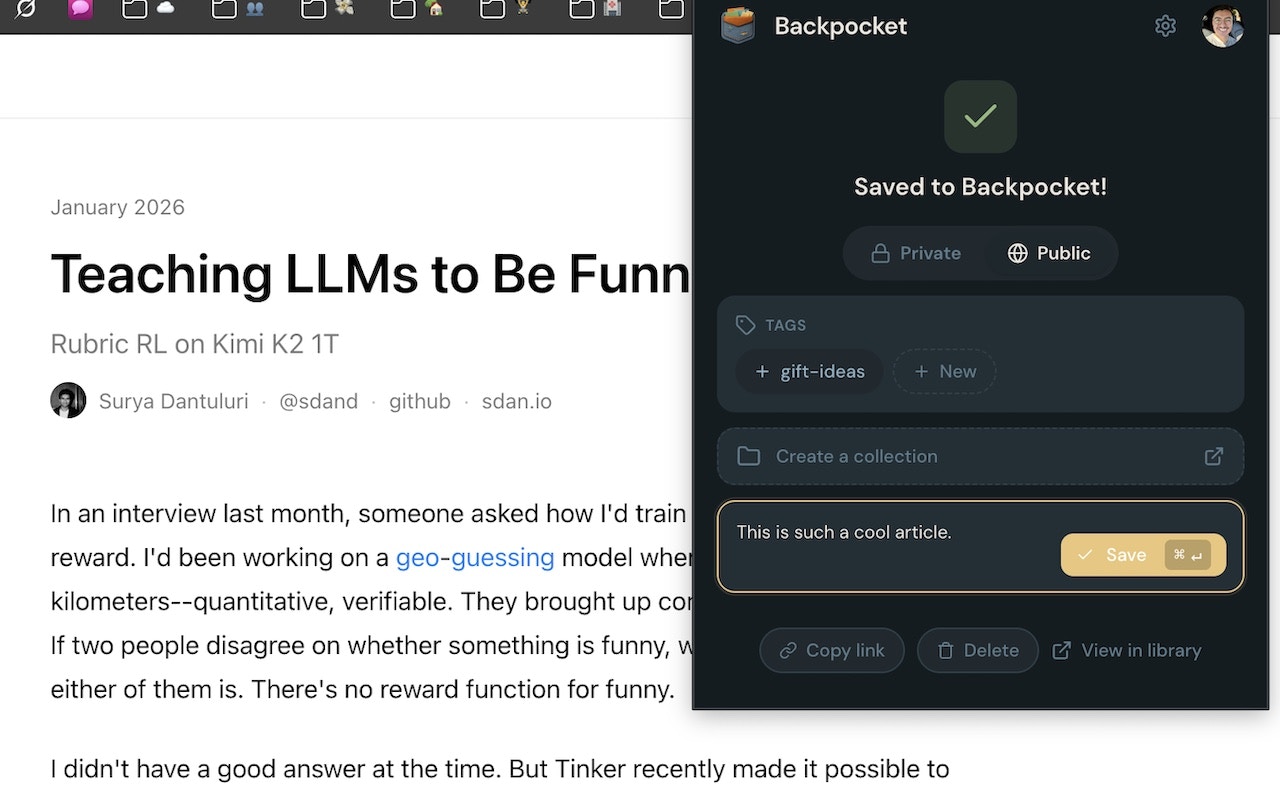
The extension’s standout feature is auto-save on open. Here’s how it works:- Navigate to any page you want to save
- Click the Backpocket icon in your toolbar
- The page URL is saved automatically as the popup opens — no extra clicks
Post-save actions
After the auto-save, the popup shows quick actions to organize your save:Add Tags
Type to search existing tags or create new ones on the fly with typeahead autocomplete.
Add to Collection
Select a collection. Any default tags on that collection are auto-applied.
Set Visibility
Toggle between public and private for this specific save.
Add a Note
Write a quick note to remind yourself why you saved this.
Duplicate detection
If you’ve already saved a page, Backpocket lets you know: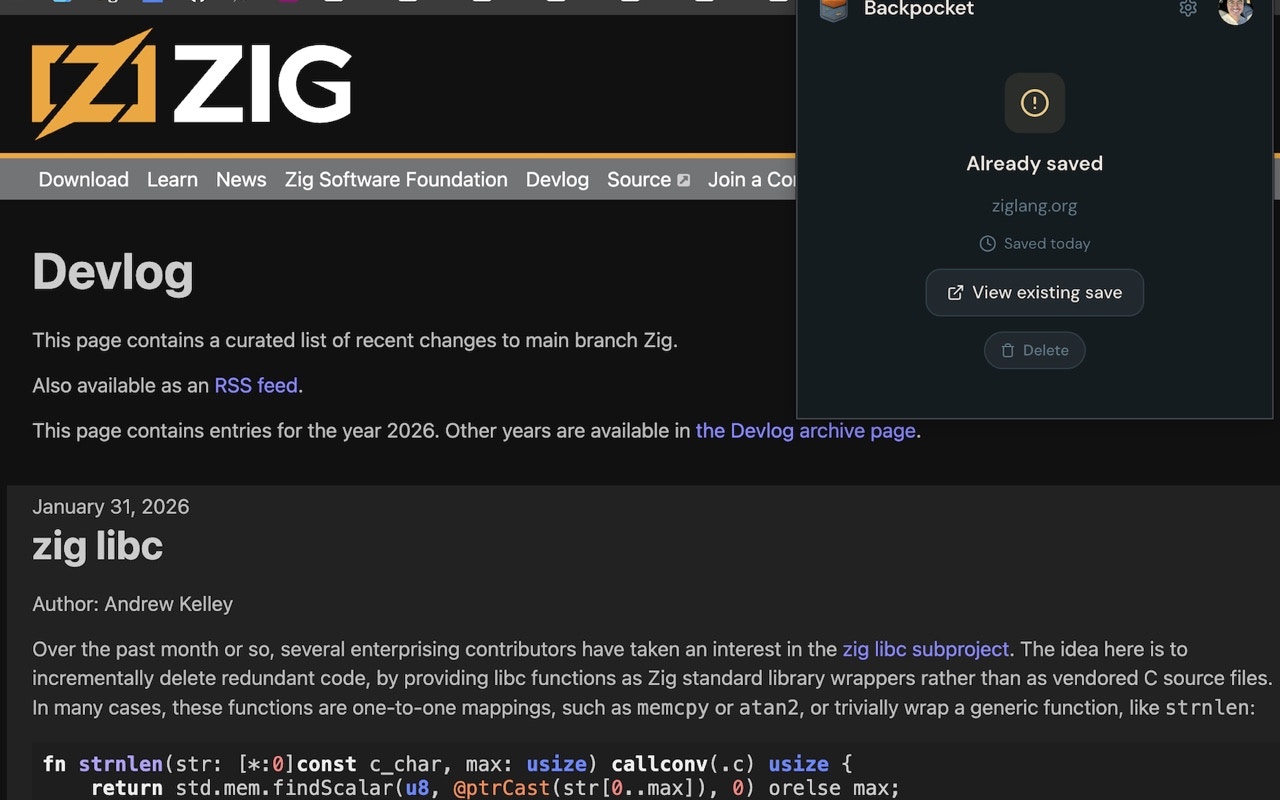
example.com/article?utm_source=twitter and example.com/article are recognized as the same link.
Context menu
Right-click on any page to save it via the context menu:- Right-click anywhere on the page
- Select Save to Backpocket
Extension settings
Click the gear icon in the extension popup to access settings:| Setting | Description |
|---|---|
| Default visibility | Set whether new saves are public or private by default |
| Theme | Match your extension to light, dark, or system theme |
| Sync | Toggle automatic sync on/off |
Recent saves
The extension popup also shows your recent saves, so you can quickly access links you just saved without switching to the web app.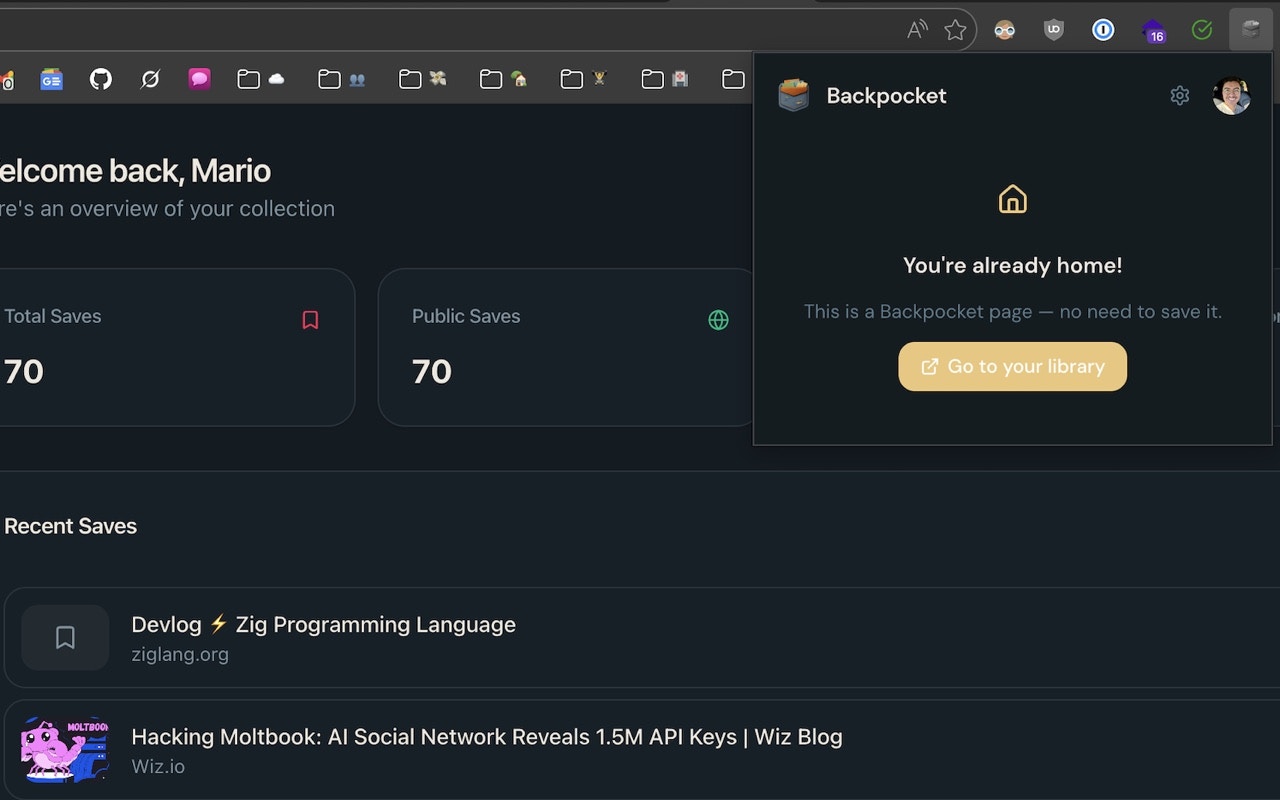
Next steps
Extension Deep Dive
Full reference for all extension features and settings.
Saving Links
Learn about metadata extraction, URL normalization, and more.